 |
Xentara v2.1.1
User Manual
|
|
Xentara v2.1.1
User Manual
|
Under Windows, the Xentara installer installs two Windows services, one for Xentara itself, and one for the Xentara licence proxy. The services can be used to start Xentara and (if required) the Xentara licence proxy when the computer starts up.
Windows services can be managed using PowerShell, or by using the “Services” MMC snap-in. You can open the “Services” snap-in by typing “Services” in the Windows Task bar search field, or you can open the snap-in from the Computer Management console.
By default, the Xentara service and the Xentara licence proxy service run under the built-in Windows LocalService account. This is not a real user account, and does not have a local app data directory. This means that the model file and other configuration files must be placed in the program data directory. The model file, for example, should be placed under %ProgramData%\Xentara\Config\model.json. Similarly, licence files must be placed inside the directory %ProgramData%\Xentara\Licence.
Windows allows you to configure a service to run under any user, if desired. If you configure Xentara and/or the Xentara licence proxy to run under a normal Windows user, you can place the configuration and licence files in the usual places. The user under which a Windows service runs can be configured using the “Services” MMC snap-in.
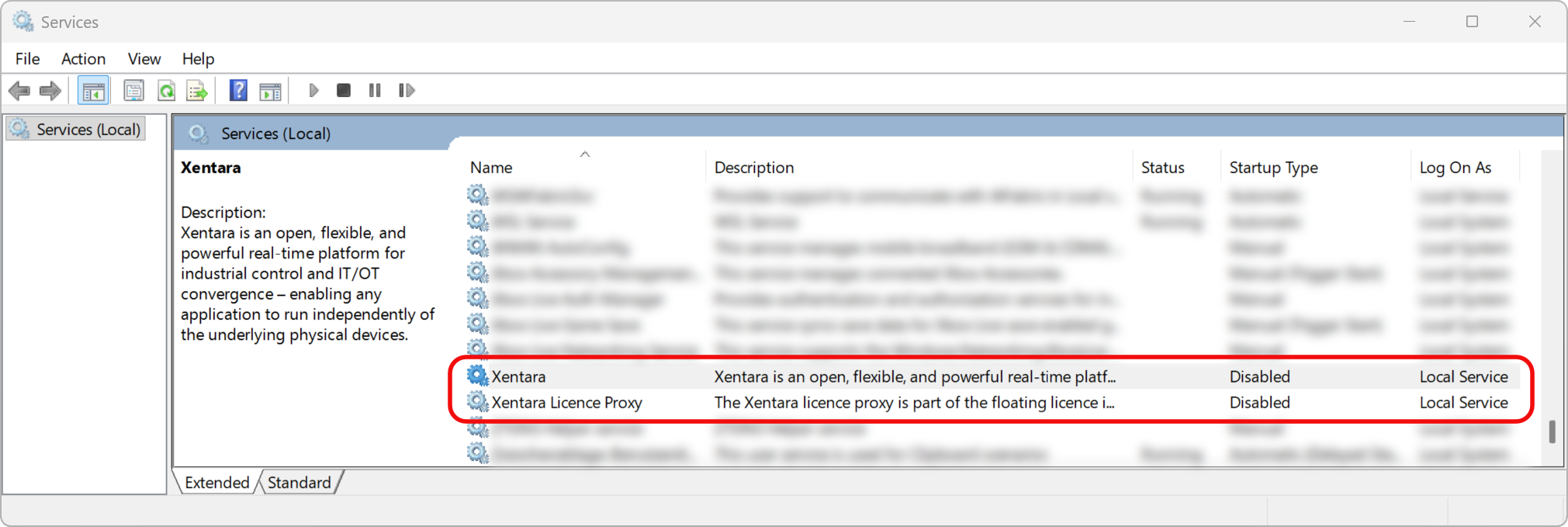
The Xentara Windows service is called “Xentara”. By default, the Xentara service is disabled, and needs to be enabled before it can be started. You can use the “Services” MMC snap-in to enable and configure the Xentara service.
Open the “Services” snap-in, and scroll down until you find Xentara service:
Double-click on Xentara service to open the properties, and change the Startup type to “Automatic”:
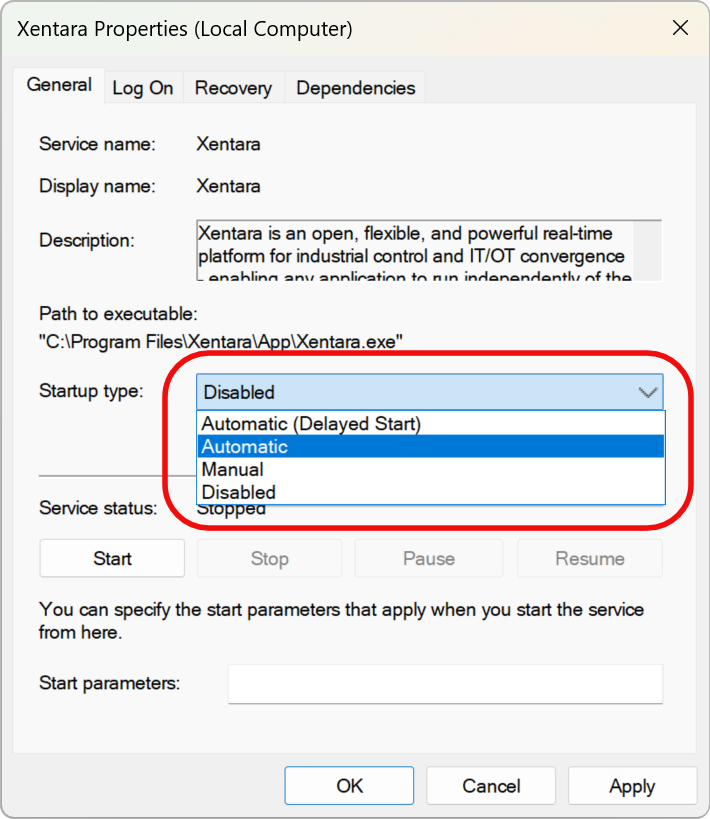
You can also set the startup type to “Manual” if you want to start and stop the service manually.
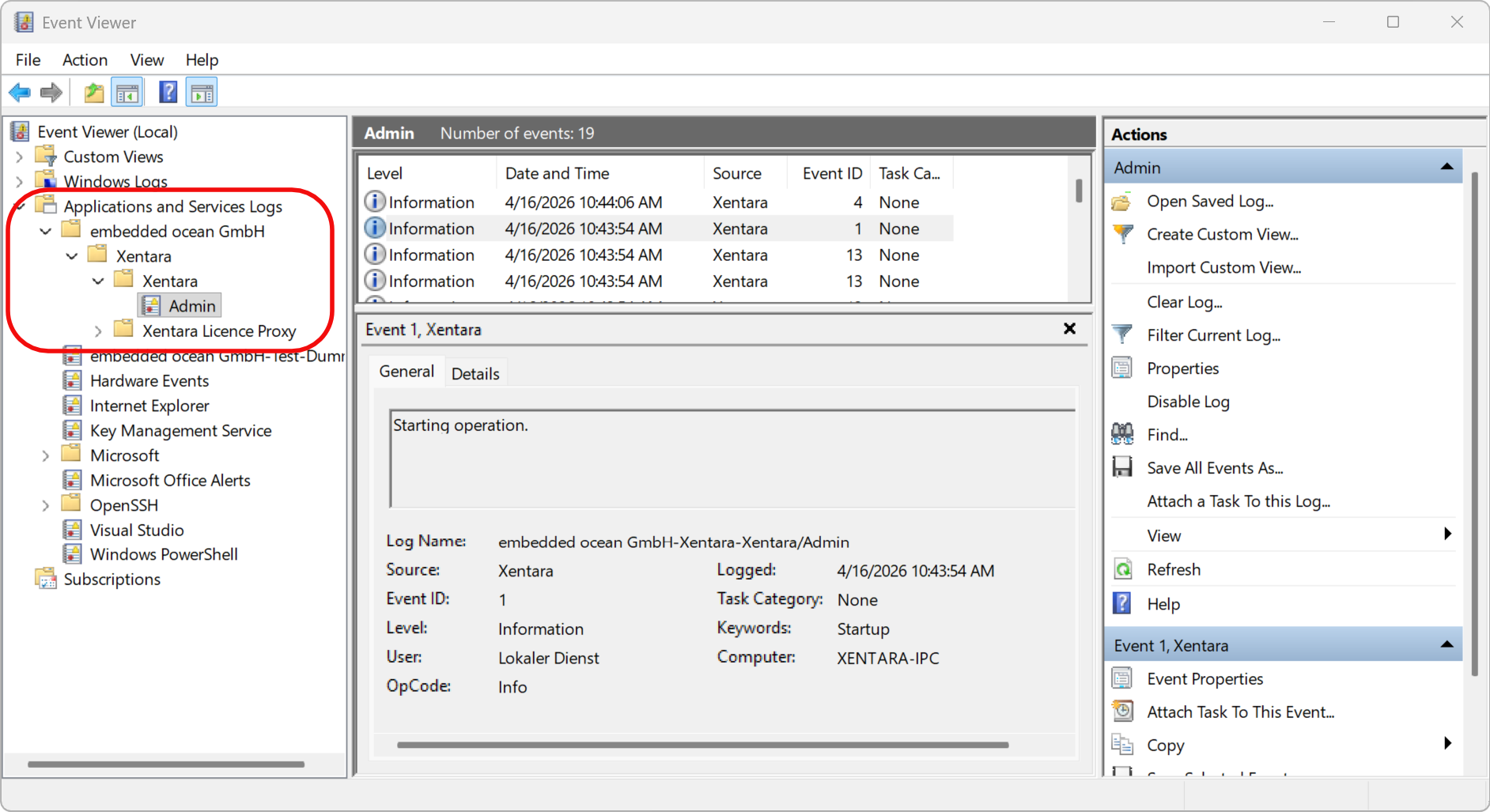
The Xentara service logs information and error events to the Windows event log. You can use the Windows event viewer to view errors and messages logged by Xentara. To open the Windows event viewer, you can type “Event Viewer” in the Windows Task bar search field.
The events logged by the Xentara service can be found in the Event Viewer under Application and Service Logs→embedded ocean GmbH→Xentara→Xentara:
The Xentara licence proxy Windows service is technically called “XentaraLicenceProxy”. To improve readability, however, the “Services” snap-in and other UI applications show the service using its display name, “Xentara Licence Proxy”.
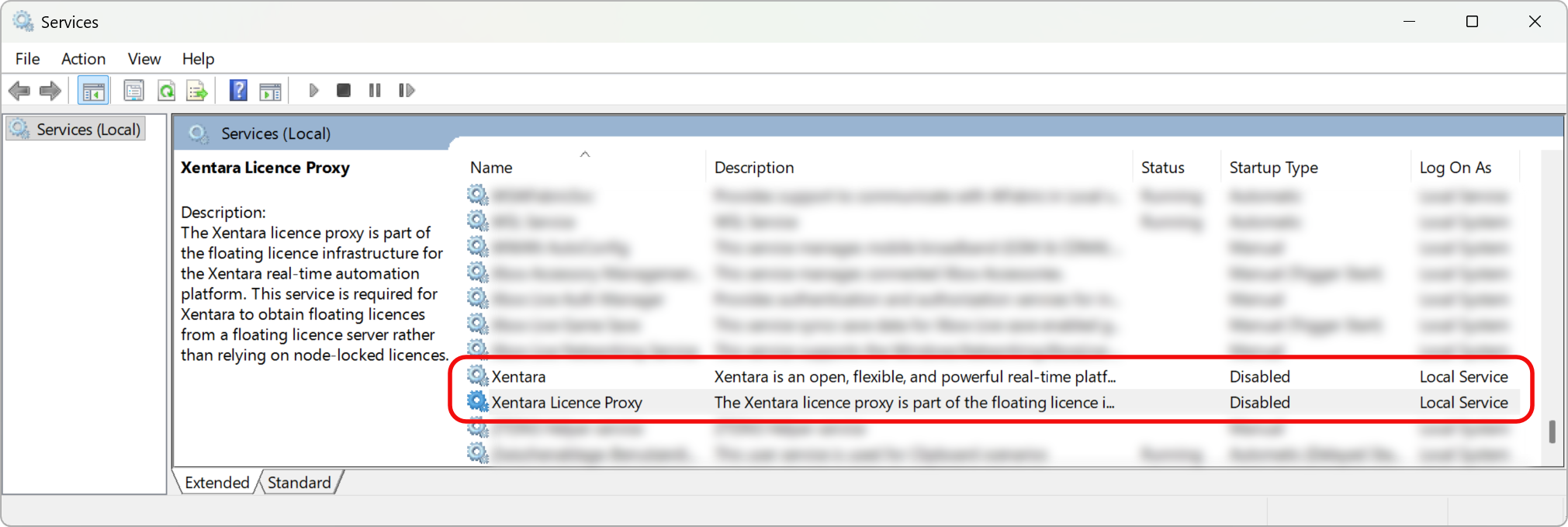
Like the Xentara service itself, the Xentara licence proxy service proxy is disabled by default, and needs to be enabled before it can be started. You can use the “Services” MMC snap-in to enable and configure the Xentara service.
Open the “Services” snap-in, and scroll down until you find the Xentara Licence Proxy service:
Double-click on Xentara Licence Proxy service to open the properties, and change the Startup type to “Automatic”:
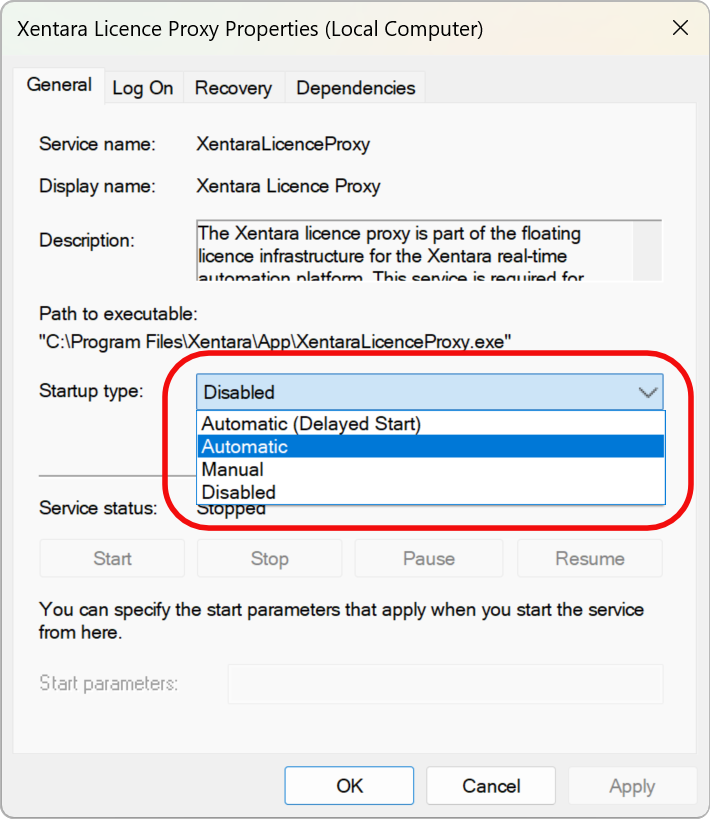
You can also set the startup type to “Manual” if you want to start and stop the service manually.
The Xentara licence proxy service logs information and error events to the Windows event log. You can use the Windows event viewer to view errors and messages logged by Xentara. To open the Windows event viewer, you can type “Event Viewer” in the Windows Task bar search field.
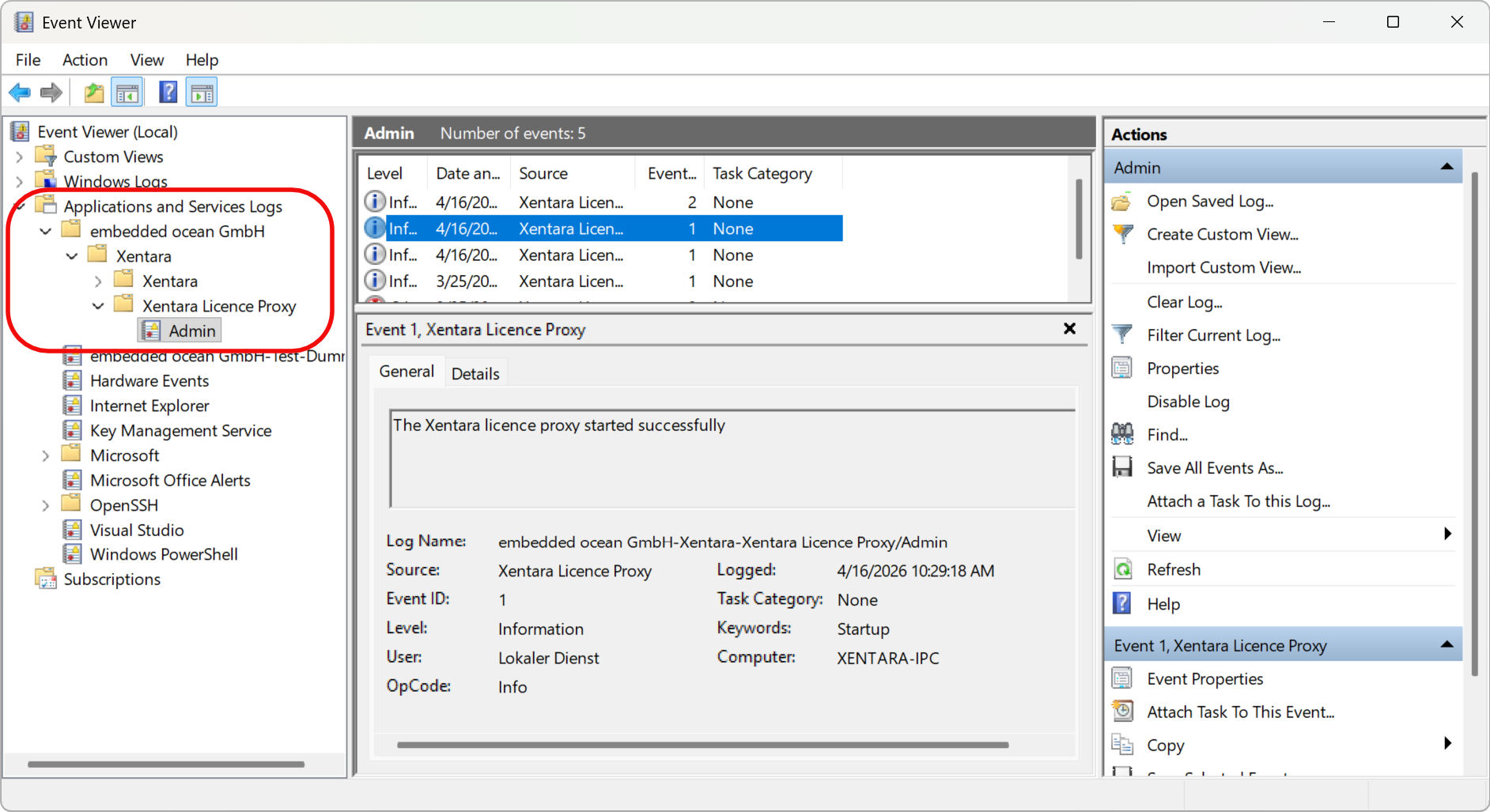
The events logged by the Xentara licence proxy service can be found in the Event Viewer under Application and Service Logs→embedded ocean GmbH→Xentara→Xentara Licence Proxy:
To enable the Xentara service, use the following command:
To stop the Xentara service, use the following command:
To start the Xentara service, use the following command:
To restart the Xentara service (e.g. to reload a changed model file), use the following command:
To get the status of the Xentara service, use the following command:
You can show and filter log entries using the Get-WinEvent command. The name of the event log for the Xentara service is embeddedOceanGmbH-Xentara-Xentara/Admin.
To show the last 100 log entries, you can use the following command, for example:
Get-WinEvent has extensive filtering options described in the documentation. To show all critical error events, for example, you can use the following command:
To disable the Xentara service again, so that it can no longer be started, use the following command:
Note that that will not stop the service automatically. You need to stop the service explicitly after you disable it.
To enable the Xentara licence proxy service, use the following command:
To stop the Xentara licence proxy service, use the following command:
To start the Xentara licence proxy service, use the following command:
To restart the Xentara licence proxy service (e.g. to reload a changed licence server configuration file), use the following command:
To get the status of the Xentara licence proxy service, use the following command:
You can show and filter log entries using the Get-WinEvent command. The name of the event log for the Xentara service is embeddedOceanGmbH-Xentara-XentaraLicenceProxy/Admin.
To show the last 100 log entries, you can use the following command, for example:
Get-WinEvent has extensive filtering options described in the documentation. To show all critical error events, for example, you can use the following command:
To disable the Xentara licence proxy service again, so that it can no longer be started, use the following command:
Note that that will not stop the service automatically. You need to stop the service explicitly after you disable it.